
Better business websites • Lindo field notes
Why AI Website Forms Don’t Work—and How to Trace a Missing Inquiry
Trace a generated contact form from browser validation to server handling and inbox delivery. Find fake success states, missing endpoints, and routing errors.
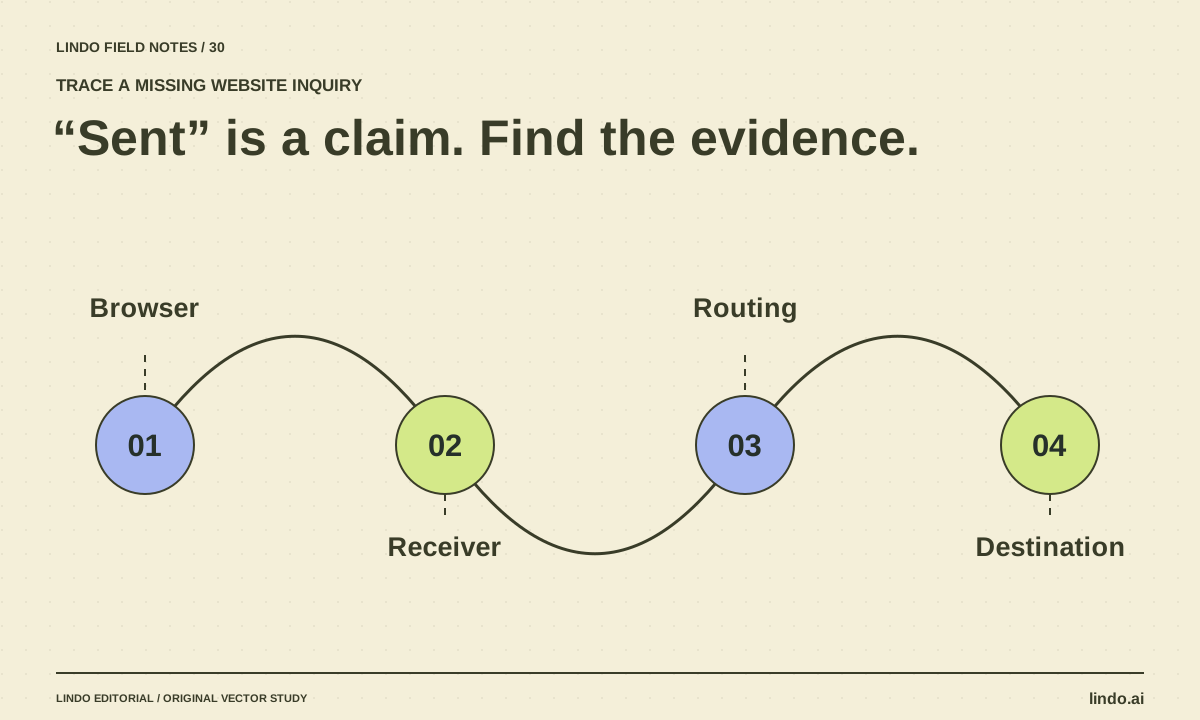
The short answer
A generated form may only implement the visible interface. Real delivery needs a valid submission path, server-side handling or a configured form service, correct routing, and accurate success and failure states. Trace one controlled test from the browser to the destination instead of assuming an on-screen “sent” message proves delivery.
In this article
You fill in the new contact form, press Send, and see a reassuring confirmation. Nothing arrives. The design is complete, but the inquiry journey is not. This can happen with an AI-generated page, a hand-coded page, or a misconfigured builder integration.
The fix begins by finding the first point where the expected evidence disappears. Do not immediately redesign the form or switch email providers. Preserve the current configuration, use test data you control, and investigate one layer at a time.
FIELD NOTE / 01
Understand the four parts of the journey
The browser collects fields and initiates a request. A server or form service validates and handles it. The service stores or routes the inquiry. The destination system makes it available to the business. A failure in any layer can produce the same symptom: no visible message in the inbox.
MDN’s form submission guide explains the browser-to-server relationship. Your implementation may use a native form submission or JavaScript, but it still needs a real receiving system.
| Layer | Evidence to inspect | Possible problem |
|---|---|---|
| Browser | Submission request is made | Button only changes local UI state |
| Receiver | Request reaches the intended endpoint | Missing or incorrect endpoint |
| Handler | Validated inquiry is stored or routed | Field mismatch or service configuration error |
| Destination | Test record or message is received | Wrong recipient, filtering, or downstream failure |
FIELD NOTE / 02
Check whether the form sends anything
On a private test version, submit a clearly labeled inquiry and inspect the browser’s network activity if you have the technical access to do so. Does a request occur? Does it go to the expected service? Is the payload populated with the intended field names?
If there is no request, the success message may be simulated. Ask the maintainer to connect the form or remove the misleading confirmation. Do not place private service keys in browser code to make the request work; credentials must be handled through an appropriate server-side or provider-supported path.
FIELD NOTE / 03
Check validation and the service response
A receiver should validate input rather than trusting browser checks alone. MDN’s validation guide distinguishes client-side convenience from the need for server-side validation. Confirm that required fields and names match the receiving service’s expectations.
Inspect errors without exposing submission contents unnecessarily. A successful HTTP response may mean only that the request was accepted—not that email was delivered. The page’s confirmation wording should match what the system actually knows.
FIELD NOTE / 04
Verify the business can find the inquiry
Check the form provider’s test record or authorized logs, then the intended inbox or CRM. Confirm the recipient, project, and environment. A preview may use a different destination from production, and a copied site may still point to an old client configuration.
Review filtering and downstream service status with the appropriate owner. Do not assume every missing inquiry is spam filtering; first establish whether the receiver accepted and routed it. Avoid repeated tests that create unnecessary records or messages.
FIELD NOTE / 05
Make failure honest and success verifiable
Show a useful error when submission fails, preserve the visitor’s input where appropriate, and provide a valid alternative contact route. Use accessible labels and discoverable errors; W3C’s forms tutorial is a helpful reference.
After repair, test valid input, invalid input, and a controlled failure path in a safe environment. Repeat the essential delivery check on the live site after deployment. Keep the test record so the next maintainer knows what was actually verified.
Take it into your next project
Missing-inquiry diagnostic record
Use a unique test marker and an address you control. Keep secrets and real customer submissions out of the report.
Page / environment / version:
Unique test marker:
Expected destination:
Browser request made? URL and status only:
Expected fields present?
Receiver accepted or rejected?
Provider record found?
Routing destination correct?
Inbox / CRM record received?
What the success message currently claims:
First layer without expected evidence:
Proposed repair and owner:
Valid, invalid, and controlled-failure retest results:
Common questions
Why does the form say sent when nothing was sent?
The interface may show success immediately without waiting for a real receiver, or it may interpret an incomplete service response as delivery. Inspect the actual request and destination evidence.
Should I put my email-service API key in the page?
No. Browser-delivered code is visible to visitors. Use a suitable server-side handler or the form provider’s supported public integration, with appropriate validation and abuse controls.
Sources & further reading
Vendor links support product descriptions. Worked examples, checklists, and selection criteria are Lindo’s editorial guidance; they are not customer results or controlled benchmarks.
Build with AI
How to Test an AI-Generated Website Before a Real Visitor Uses It
A practical AI website QA guide covering facts, mobile layouts, keyboard access, forms, routes, and launch ownership—with a copyable test record.
Choose your tools
Can AI Build a Production-Ready Website? The Missing Ownership Checklist
AI can produce much of a website, but readiness depends on verified content, working services, access, recovery, and maintenance. Use this release checklist.
Build with AI
How to Fix an AI-Generated Website Without Starting Over
Diagnose weak AI website drafts in the right order: facts, visitor journey, functionality, layout, and visual polish. Includes a focused repair prompt.